Tampilkan postingan dengan label Blog. Tampilkan semua postingan

Minggu, 21 September 2008

How do I show ads between my posts?

To show ads between your posts first go to your Template | Page Elements tab. Then, in the "Blog Posts" section, click on "Edit". A pop-up window will appear with options to configure your blog posts. Check the box next to "Show Ads Between Posts". (Note: You must be signed up for AdSense before you can check this box.)
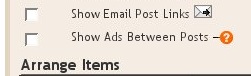
Show Ads Between Posts

Once you check this box you'll see the configuration options for your ads. You can then select how often you would like ads to be shown after your posts.

Show after every x posts

For example, if you want ads to be displayed after every post, select "1" from the drop-down menu. (Please note that AdSense policies limits you to a total of 3 ad units per page and Blogger will automatically prevent you from going over this limit.) You can then select your ad format and colors. Once you have finished configuring your ads, click on the orange "Save Changes" button in the bottom right corner.

How do I put AdSense on my blog (using Layouts)

First of all, choose the blog that you want to put AdSense on, and go to the Template | Page Elements tab. You can get there by clicking the Layout link on the dashboard, or clicking the Template tab from the posting or settings page of the blog.

Once you're there, click one of the Add a Page Element links. Choose the one that corresponds to the area of the page that you want to contain your AdSense ads. When the 'Choose a New Page Element' window comes up, select the AdSense option.

The next page displays an AdSense sign-up page. If you're new to AdSense, go ahead and fill it out to create an account. If you already have an AdSense account, click the sign in link instead so you don't accidentally make an extra account.

Once you've signed in or created or account, you'll get the configuration screen. Use the menus to select a format, and one of our preset color templates. If you want more control, you can also enter colors of your own choosing by typing the hex codes in the spaces provided.

If for any reason you need to switch to using a different AdSense account, click the Switch to a different publisher ID link at the bottom.

When you have things the way you want them, just save your changes and go see how it looks on your blog. Come back to tinker with the settings any time by clicking the edit link for the AdSense unit on the Page Elements tab.